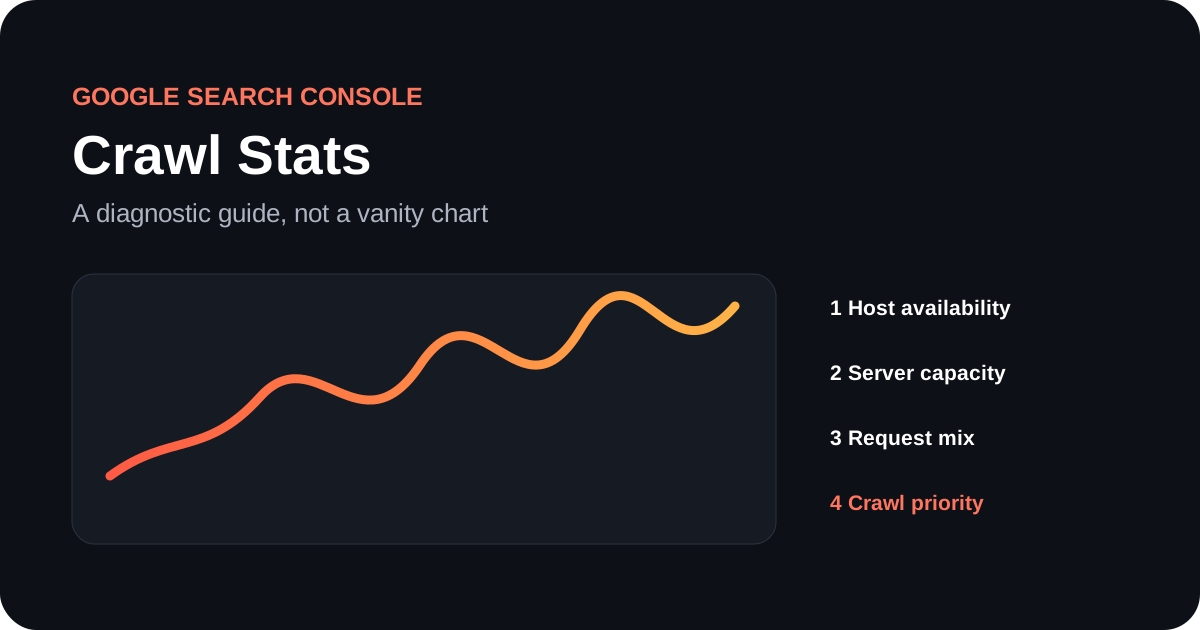
The Crawl Stats report shows how Googlebot has requested a site, not whether every important URL is indexed. Read it as a diagnostic sequence: confirm that the host was available, check whether responses became slower, identify which requests changed, and only then discuss crawl demand. That order prevents a normal chart fluctuation from becoming an invented SEO problem.
This guide explains the Google Search Console Crawl Stats report and adds an evidence ladder you can reuse during an incident. Google’s official Crawl Stats documentation defines the metrics and limitations; the workflow below turns them into decisions.
What the report can answer
The report answers operational questions about Googlebot activity during the available reporting period. It shows total crawl requests, total download size and average response time. Its grouped tables split requests by response code, file type, crawl purpose and Googlebot type. Host status summarizes whether robots.txt fetching, DNS resolution or server connectivity created availability problems.
A Google crawl report is useful when crawling changes suddenly, after a migration, during a server incident, or when log files suggest unusual bot load. It is not a ranking report. A stable graph does not prove that a particular URL was crawled, rendered, indexed or selected as canonical. Use URL-level evidence for those questions.
Where to find Crawl Stats and when to use it
Open Search Console, choose the relevant property, go to Settings, and open Crawl stats. Google describes this as an advanced report and notes that smaller sites generally do not need to monitor it routinely. A domain property can expose data for child hosts, while a URL-prefix property is limited to its scope. Always record the property and host before comparing numbers.
If you are asking “how often does Google crawl my site?”, the request chart gives an observed history, not a fixed schedule. Googlebot revisits URLs according to crawl capacity and crawl demand. There is no universal frequency that a site should reach. Compare the site with its own normal pattern, not with an unrelated domain.
Use a four-level evidence ladder
Our diagnostic model separates four causes that are often mixed together. Move down the ladder only when the previous level is healthy. This is the article’s own framework, built from the dimensions available in the report.
| Level | Question | Evidence | Next action |
|---|---|---|---|
| 1. Availability | Could Google reach the host? | Host status, DNS, robots.txt and connectivity | Resolve the infrastructure incident first |
| 2. Capacity | Did the server become slower or error-prone? | Average response time and 5xx response share | Inspect server logs, capacity and timeouts |
| 3. Request mix | What kind of requests changed? | Response, file type, purpose and bot breakdowns | Locate the affected template or resource family |
| 4. Priority | Did demand for useful URLs change? | Discovery versus refresh, sitemaps, internal links and URL inspection | Improve signals and validate representative URLs |
This ladder matters because the same fall in requests can have opposite meanings. A drop after duplicate faceted URLs are blocked may be healthy. A drop accompanied by DNS failures and rising response time is an incident. The chart alone cannot distinguish them.
Build a baseline before diagnosing a change
A useful Crawl Stats report begins with a comparison window. Select several ordinary weeks that match the same deployment and traffic conditions. Record the median daily requests, average response time, dominant response codes and the split between discovery and refresh. Mark releases, migrations, outages and robots.txt changes on the timeline.
Here is an illustrative calculation, not a benchmark. If a site normally receives 900 requests per day and the comparable period shows 540, the observed change is (540 − 900) ÷ 900 = −40%. That calculation describes magnitude only. It does not name the cause. The evidence ladder supplies the causal tests.
Do not compare a weekday peak with a weekend low, or a new domain with a mature one. Preserve screenshots or exported table rows for the incident record, but do not treat a sampled URL list as a complete server log.
Diagnose a crawl activity drop step by step
1. Start with host status
Open every host listed in the report. A red or warning state near the date of the drop moves the investigation to DNS, robots.txt availability and server connectivity. Google’s crawling troubleshooting guide explains how availability failures affect crawling. Confirm the event in hosting and CDN logs.
2. Compare response time and server errors
If average response time rises while requests fall, the server may be limiting crawl capacity. Open the response breakdown and inspect 5xx, 429 and timeout-like failures. A site crawl can reproduce internal navigation and response behavior, but it is not Googlebot evidence. Use it to locate patterns, then confirm them in server logs.
3. Find the changing request family
When capacity is stable, compare HTML, image, JavaScript and other file types. Then compare refresh with discovery and smartphone with other Googlebot types. In practice, Google Search Console crawl reports let you monitor these distributions, but the samples are examples, not exhaustive URL inventories. A spike in redirects can be checked with the redirect checker and interpreted with the HTTP status code guide.
4. Validate important URLs separately
If the aggregate data looks healthy but key pages remain unseen, inspect representative URLs, sitemap inclusion, internal links, canonical declarations and robots directives. The GSC URL auditor helps organize URL-level checks. Aggregate Google crawl stats cannot replace URL Inspection or a log-based sample.
How to interpret each breakdown
| Breakdown | Useful signal | Common wrong conclusion |
|---|---|---|
| By response | Changes in 2xx, redirects, 4xx and 5xx | Every 404 wastes crawl budget |
| By file type | A template or resource family dominates requests | Every asset request should be blocked |
| By purpose | Discovery and refresh move differently | Discovery guarantees indexing |
| By Googlebot type | Smartphone, image or other bot mix changed | A bot share is a ranking factor |
In crawl stats in Google Search Console, percentages need context. A large 404 share can come from retired URLs that Google is verifying. Redirects may be expected during a migration. The useful question is whether the change matches an intentional release and whether important URL groups remain reachable.
What the report cannot prove
Google Search Console crawl data does not expose a complete request log, a fixed crawl budget, or a per-URL history for every request. It does not prove rendering success, indexing, canonical selection, ranking or traffic. Search Console’s public API reference lists Search Analytics, Sitemaps, Sites and URL Inspection resources; it does not provide a Crawl Stats endpoint.
For large or rapidly changing sites, read Google’s crawl budget guidance. For smaller sites, technical discoverability and indexability checks are usually more actionable than trying to maximize request counts.
A practical incident checklist
- Record property, host, date range and the exact symptom.
- Compare against a representative baseline.
- Check host availability before interpreting volume.
- Compare response time and server-error share.
- Locate the changed response, file, purpose or bot segment.
- Match the date to releases, robots.txt edits and infrastructure events.
- Validate representative important URLs separately.
- Write the conclusion as evidence plus uncertainty, not as a guess.
The goal of crawl stats is not to make the line rise. It is to determine whether Googlebot can access useful content efficiently and whether an observed change requires action.