What is Google Search Console and how to use it
Google Search Console is a free Google service that shows how your site performs in Google Search and what Google finds when it crawls it. Here is what it shows, which reports to open first, how to add a site and why its numbers differ from Analytics.
✓ Verified against Google documentation · 4 October 2026
What Google Search Console is
Google Search Console is a free Google service that helps you monitor, maintain and troubleshoot your site’s presence in Google Search. It shows how often your site appears in results, for which queries, how often people click, and tells you when Google runs into indexing or crawling problems (About Search Console).
You do not need to register in Search Console for your site to be included in Google results. It exists to help you understand and improve how Google sees your site. To use it you need a recent browser with cookies and JavaScript enabled and a Google account.
What you can do in Search Console
Google lists these tasks:
- confirm that Google can find and crawl your site;
- fix indexing problems and request re-indexing of new or updated content;
- view Google Search traffic data: how often your site appears, for which queries and how often people click through;
- receive alerts about indexing, spam and other issues;
- see which sites link to yours.
Google also names who it is for: business owners (who should at least know it exists), SEO specialists and marketers, site administrators (server errors, security issues) and web developers (markup errors such as structured data).
Four reports to start with
- Performance. Clicks, impressions, CTR and average position by query, page, country and device (Performance report). It does not tell you whether a page is indexed right now.
- Page indexing. Which pages Google knows about, which are indexed and why some are not. Google says that if your site has fewer than 500 pages you probably do not need this report: check key pages with a
site:search instead (Page indexing report). - URL Inspection. What Google knows about one address, whether it might be indexable, and a way to request indexing (URL Inspection tool).
- Sitemaps. Submit a sitemap and see errors in processing it. A small site (about 500 pages or fewer) where every page can be reached by links from the homepage probably needs neither a sitemap nor this report, and hosts such as Wix or Squarespace manage the sitemap themselves (Sitemaps report).
There are other reports, for example Links and Manual actions, but these four answer most first questions.
How to add your site
- Sign in to Search Console with a Google account.
- Add a property and choose its type: Domain or URL-prefix (see below).
- Verify ownership. A Domain property requires DNS record verification, except for sites on Google products such as Blogger or Google Sites; a URL-prefix property offers several methods (Add a website property).
- Wait for data. Collected data is usually available in two to three days.
Domain or URL-prefix: which property to choose
| Type | What it covers | Verification |
|---|---|---|
| Domain, e.g. example.com | all subdomains and protocols | DNS record only |
| URL-prefix, e.g. https://example.com/shop/ | only URLs that begin with that exact prefix, including the protocol | several methods |
Choose a URL-prefix property when you need data for one section or one protocol, and a Domain property to cover everything at once. Before comparing numbers, check which property is selected: a different scope gives different totals.
What Search Console does not show, and why numbers differ from Analytics
- What visitors did after the click. Search Console counts impressions and clicks in Google Search; sessions and purchases belong to Analytics or your own systems.
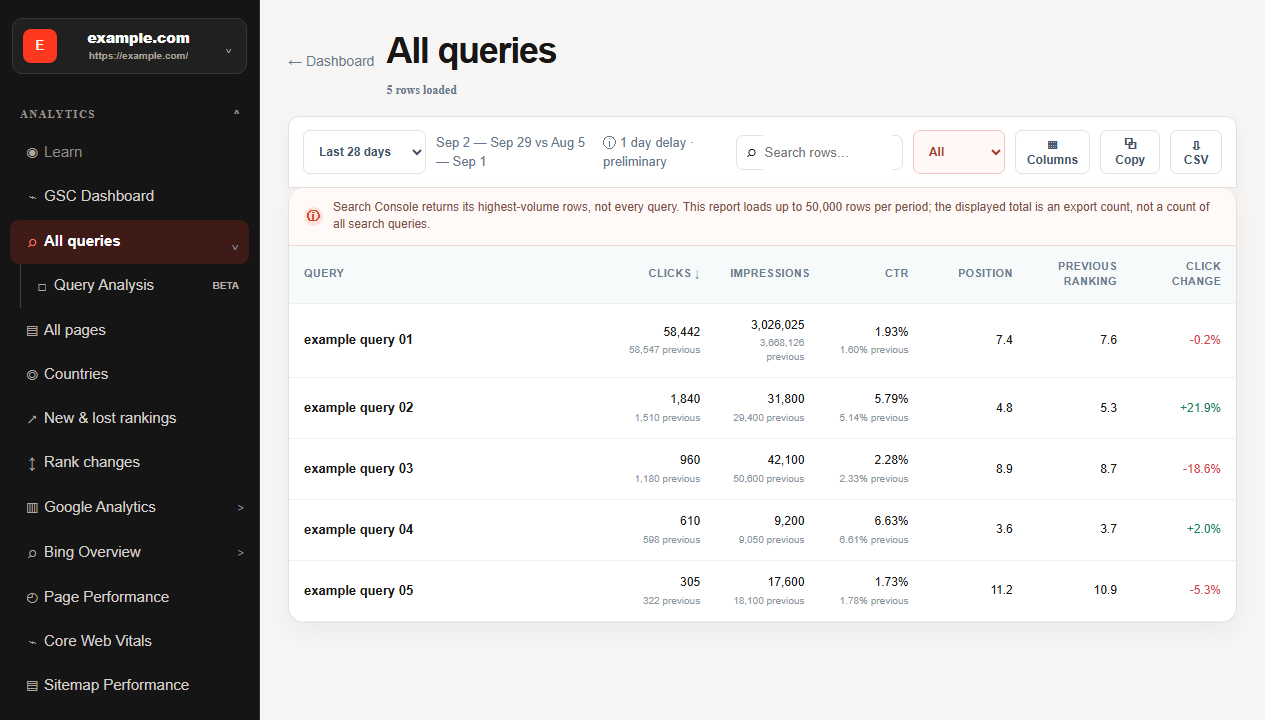
- Every row. The table shows at most 1,000 rows, and anonymized rare queries are left out of the table but included in the chart total (troubleshooting data discrepancies).
- Instant data. Collected data is usually available in two to three days.
- Your time zone. Daily data is tracked in Pacific Time in all views except the 24-hour view.
- Visitors without JavaScript. Tools such as Google Analytics track only users who have JavaScript enabled.
So compare the systems to find the stage of the problem, not to force the totals to match. If you need history for longer, set up a BigQuery export: Google says data accumulates there indefinitely unless you set an expiration (bulk data export).
An example: leads fell, what to check first
An illustrative case. A service page brought 19 leads over the last complete 28 days against 32 in the previous period. For the same page and periods Search Console shows 238 clicks against 240, so search traffic barely moved. The cause is therefore after the click — Analytics sessions, the lead event, the form, recent page changes — and rewriting the text over “lost rankings” would be premature. Stable clicks move the question from visibility in Search to what happens on the site.
How to use it: a first check in ten minutes
- Open Performance and choose two equal complete periods, for example 28 and 28 days.
- Compare clicks, impressions, CTR and position (see clicks vs. impressions).
- Split by Queries and Pages without changing the period or filters.
- Inspect one important page in URL Inspection.
- Write down the conclusion and what it does not prove.
Search Console questions, answered
Is Google Search Console free?
Yes, it is a free service from Google.
Do I need it for my site to appear in Google?
No. Registration is not required for inclusion in results; Search Console helps you understand and improve how Google sees the site.
How is it different from Google Analytics?
Search Console shows what happens in Google Search before the visit: impressions, clicks, queries and indexing. What visitors do on the site afterwards is measured in Analytics.
How soon does data appear?
Collected data is usually available in two to three days, and the newest data can be preliminary.
Does it show my competitors’ rankings?
No. It reports on properties you have verified.
Do I have to verify ownership?
Yes. A Domain property requires DNS verification; a URL-prefix property offers several methods.
What to read next
Continue with clicks and impressions, CTR and average position and how indexing works, or go back to what SEO is.